

The context (Right Click) menu in Windows 11 is redesigned and kept with limited entries when compared to old windows . It includes a row of icons for basic actions like copy, paste, and delete, but hides some functionality you might want behind a ‘Show More Options’ button this mean Every time we need to press an extra option to see all the context menu options. We will make a brief assessment of the cost to the world of the “show more” option that Microsoft added to the Windows 11 desktop context menu. Ergonomics is important because, Implementing ergonomic solutions can help trim operating expenses by reducing costs and improving productivity. Imagine a workplace where 10 people work, each computer user clicks on the desktop 100 times a day, each click wastes an extra 1 second.
10 x 100 = 1000 seconds (16,67 Minutes) a day Lost.
30 x 1000 = 30000 seconds ( 500 Minutes = 8,33 Hours) a Month Lost.
Even in a workplace with only 10 employees, it causes loss of 8.33 hours per month. Consider the waste of time in the workplace where 100 people work.
Windows 11 Classic Context Menu v1.3 – (Tuesday, 2026.11.24)
[ FIXED ] – After the Windows update, it no longer switches to the classic menu.
[Added] – Code Improvements.
How to Get the Classic (old) Context Menu on Windows 11
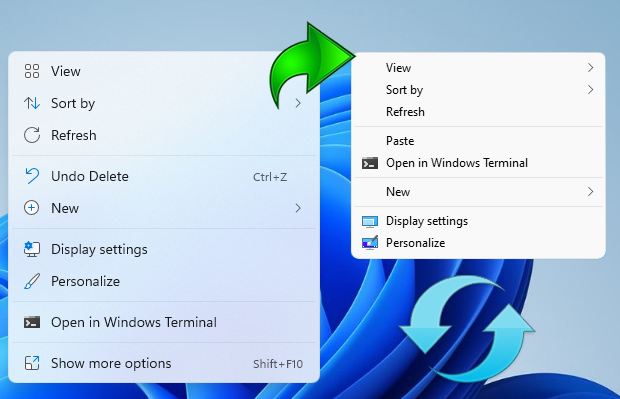
If you want to remove the “Show More Options” entry from Windows 11 Context Menu and restore classic Right Click menus in Windows 11 you can use following registry entries.
Restore full right click context menu in Windows 11 via Registry
Windows Registry Editor Version 5.00

[HKEY_CURRENT_USER\Software\Classes\CLSID\{51668040-5e31-4023-bbe3-149163bd80f1}\InprocServer32]
@=""

[HKEY_CURRENT_USER\Software\Classes\CLSID\{86ca1aa0-34aa-4e8b-a509-50c905bae2a2}\InprocServer32]
@=""
Get the default Windows 11 Context Menu back via Registry
Windows Registry Editor Version 5.00

[-HKEY_CURRENT_USER\Software\Classes\CLSID\{51668040-5e31-4023-bbe3-149163bd80f1}]

[-HKEY_CURRENT_USER\Software\Classes\CLSID\{86ca1aa0-34aa-4e8b-a509-50c905bae2a2}]
After applying the above registry entries, you need to restart File explorer for the settings to take effect. Alternatively you can use Command Prompt to do the same task.
Restore Classic Context Menu on Windows 11 with Cmd
1. Open Cmd with Administrator privileges
2. Copy and paste the below Code and press enter
reg.exe add "HKCU\Software\Classes\CLSID\{51668040-5e31-4023-bbe3-149163bd80f1}\InprocServer32" /ve /f

reg.exe add "HKCU\Software\Classes\CLSID\{86ca1aa0-34aa-4e8b-a509-50c905bae2a2}\InprocServer32" /ve /f
Restore Default Context Menu on Windows 11 with Cmd
1. Open Cmd with Administrator privileges
2. Copy and paste the below Code and press enter
reg.exe delete "HKCU\Software\Classes\CLSID\{51668040-5e31-4023-bbe3-149163bd80f1}" /f

reg.exe delete "HKCU\Software\Classes\CLSID\{86ca1aa0-34aa-4e8b-a509-50c905bae2a2}" /f
NOTE: Restart the file explorer after the above steps.
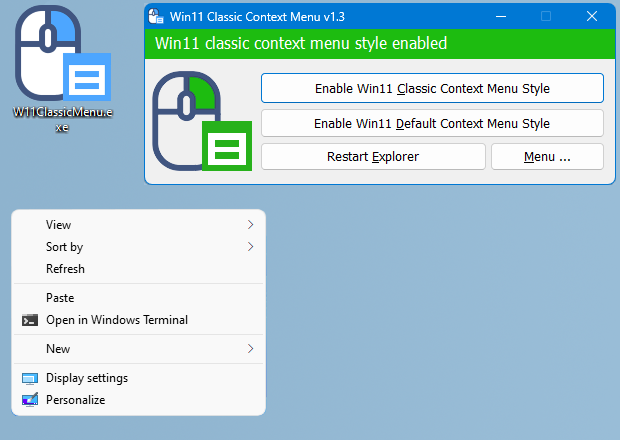
If you are looking for a one click solution to Disable or Enable the New Context Menu in Windows 11 instead of dealing with registry entries you can use Win 11 Classic Context Menu v 1.0 Portable freeware Application. It has minimalistic interface Use first Button “Enable Win 11 Classic Context Menu Style” button to disable “Show More Options” from the Right Click Menu in Windows 11
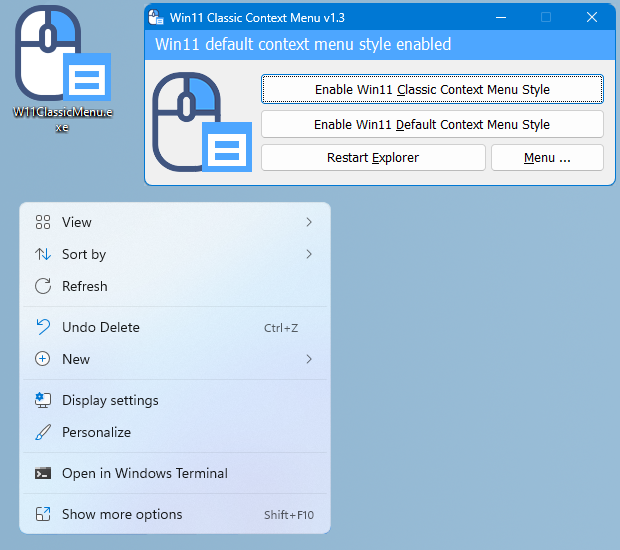
To disable the classic Context Menu in Windows 11 use second button “Enable Win 11 default Context Menu Style”, If you need to restart Windows explorer, software will detect it and warn you
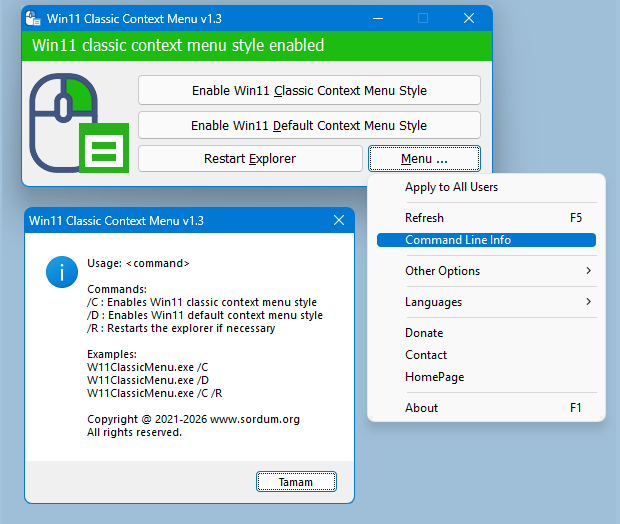
Windows 11 Classic Context menu has CMD parameter support. To see all the supported command line parameters , use the Menu – “Command Line Info” Button.
With this Application you can easily toggle between Old Windows 10 Right Click Context Menu and default Windows 11 Context menu.
Supported operating systems: Windows 11
Supported languages: English, Turkish, German, Russian, French, Spanish, Brazilian Portuguese, Greek, Korean, Chinese, Polish, Swedish, Hungarian, Czech, Bulgarian, Italian, indonesian, Japanese, Romanian, Hebrew, Vietnamese, Arabic, Persian, Dutch, Ukrainian, Georgian, Catalan, Slovenian

File: W11ClassicMenu.exe │ Virustotal
MD5 : f558db2f6fb80d497596b3cab48d1908
SHA-1 : cc91a1416f11890dc85d466c7e71bd31e84955eb
SHA-256 : be2e1716fd066caa606aacb30cde6b4b642f62c3cdce0007dc94d0dc02030460


 Show My IP Address
 Google Translate
Yes, we’ve been aware of this setting since it was first released, and it’s working.
cmd
reg add "HKCU\Software\Classes\CLSID\{51668040-5e31-4023-bbe3-149163bd80f1}\InprocServer32" /f /ve
We are currently working on the new version.
Not working in 26h2
Hi all,
SHA256=
a79d124f10a31cb6a4d4adb50469e13df55149c30fe651ad5d5caea290e6c48a
Have add ons for Control Panel, Personalize Classic and Restart Explorer
PowerShell is included in the classic context menu by default.This option may be hidden on your system.Press and hold the Shift key on your keyboard to display the right-click menu.
The menu Open in windows terminal disapears
when enable classic style
Nice software. Hope it can work forever.
this software is so powerful! I’d love it ! very useful and I must send it to my friend now. I have waste so much time just at a stupid W11 contex menu!
Nice software!Thank you
Have you tried changing the IP? If you reboot the modem, you will probably get a new IP and the warning will go away.